



















Frequently Asked Questions
Welcome to the Frequently Asked Questions page of Shuju Hongxin! We have gathered product technology, service policies, and operational guidelines that customers frequently consult about.
Tag filtering

ALL
Product issue
Service issues
ALL
9 results

Reset
-
Q
Frequently Asked Questions about Warranty Policy
A1. Is the repair method "on-site" or "send for repair"?
Shuju Red Core devices generally come with a certain period of free on-site hardware failure service. You can → click on "Maintenance Service Inquiry" and enter the host number in the opened page to check if your device's warranty service is within the warranty period.
2. How long will it take to repair the equipment?
Regarding the specific repair time for the equipment, it depends on the current fault symptoms of the equipment and the spare parts availability at the service station. Generally, the fault will be resolved by the next working day after it occurs.
3. Does the service station charge for on-site maintenance?
Some of the DataCVG Red Core devices come with free on-site service (generally, this on-site service is only for hardware repairs within the warranty period);
For on-site service requests for out-of-warranty equipment and non-standard services, the general fee standard follows the paid service fees of DataCVG Redcore. We recommend that you contact the sales manager or call 400-869-9865 for communication and confirmation.
4. Is there a charge for on-site equipment maintenance?
On-site inspection for equipment within the warranty period is free of charge, but whether the repair is free of charge depends on the specific fault and the warranty status of the computer;
After the warranty period, a certain fee will be charged for sending it to a service station for inspection or making an appointment for on-site inspection. The repair cost depends on the specific fault and the parts being repaired. Please contact the sales manager or call 400-869-9865 for confirmation.
5. Are there any charges for repairing or replacing parts?
If your computer is under warranty and the fault is within the scope of the warranty, free repair services can be provided;
If your computer is out of warranty or the fault phenomenon is beyond the warranty scope, we recommend you to contact ➢ the nearest service station (click here for mobile devices) ➢ the nearest service station (click here for PC devices) for specific repair costs. The final cost will be determined based on the engineer's inspection results.
6. Is there a charge for installing the system?
Regarding the question of whether the installation system is free of charge, the following two situations should be distinguished:
1) If your machine comes pre-installed with a system and is within the three-year warranty period, the service station engineer can remotely assist you in restoring the pre-installed system to its factory default state for free.
2) If the warranty period exceeds three years, or if you need to install a system that is not the factory standard configuration, you can contact the sales manager or call 400-869-9865 to inquire about the service fee information.
7. Is there a charge for updating the BIOS?
If there are no issues encountered during equipment usage, there is generally no need to flash the BIOS, and there may not necessarily be an updated BIOS version for the corresponding model;
If you have a personal need to update the BIOS, you can contact the sales manager or call 400-869-9865 to inquire about the BIOS version and related service fees.
8. Will disassembling the device affect the warranty?
Unregulated disassembly may cause damage to computer components and even pose serious safety hazards. Therefore, we do not recommend that you disassemble the computer yourself. If you need to upgrade, repair, or perform other tasks, we suggest that you contact our sales manager or call 400-869-9865 for communication and confirmation;
If there is any appearance damage to the components after disassembly, the warranty may not be valid, and generally, paid repairs are required. The specific situation needs to be subject to the inspection by the service station engineer.
9. Can the warranty cover non-normal hardware damage?
If the DataCVG Redcore product you purchased is damaged due to improper use (such as "accidental liquid spillage", "accidental drop or collision", "external pressure", etc.), it may not be eligible for warranty service and generally requires paid repair. You can also contact the sales manager or call 400-869-9865 for assistance in verification. The service station engineer will help you determine whether it is eligible for warranty service based on the specific fault phenomenon.
10. Is there a charge for equipment cleaning services?
Cleaning the interior of the equipment requires disassembly and assembly, which, if not conducted properly, may cause equipment malfunctions and affect the warranty. If necessary, it is recommended to contact 400-869-9865 for communication and confirmation, and a professional engineer will assist you in resolving the issue.
As computer cleaning services are not covered under the normal warranty, if you require a service station engineer to clean your computer, there will be a fee involved. For specific costs, we recommend consulting with the sales manager or calling 400-869-9865 for confirmation.
11. If I cannot provide an invoice or warranty card, can I still apply for a warranty?
In principle, when applying for warranty service, users must provide valid sales invoices and warranty cards issued by the product seller, so that the service provider can verify and confirm information such as the product's origin and status. If you are unable to provide the aforementioned documentation, but the service provider can verify the information through other reasonable and feasible means, and confirm that the product you possess is from a legitimate source and that the product or corresponding part is still within the warranty period, warranty service can still be provided to you. However, please note that if the service provider is unable to verify and confirm the actual purchase date of the product, the warranty period for the product or part will be calculated from the date of manufacture.
To protect your interests, please request the product seller to issue a valid invoice and warranty card when purchasing the product, and keep them properly. If you purchased the product online, by phone, or through other remote methods, you may also need to retain valid delivery documents.
Please note that when you apply for warranty service, the service provider has the right (or even the obligation) to require you to provide relevant evidence and documents to prove that you are the legal owner of the product, or that the owner of the product has agreed to your decision to repair, replace, return, or dispose of the product. If the product you hold is provided by your unit or a unit with which you have a cooperative relationship, and if you need to apply for warranty service or service, you should do so through the unit that provided you with the product, in accordance with the contract agreement between that unit and the product seller.
12. How to repair the equipment after the warranty period?
If the equipment has exceeded its warranty period, you can contact the sales manager or call 400-869-9865 to provide you with paid after-sales maintenance services.
13. Will upgrading and adding hardware on my own affect the warranty?
Generally, if the malfunction of the pen is not caused by your upgrading of hardware, it will not affect the normal warranty. Ultimately, the inspection by the engineer at the service station shall prevail. -
Q
What should I do if the hard drive is not detected?
AFriendly reminder: If you cannot detect the hard drive during device usage, we recommend mounting the hard drive on another host or reseating it. Please back up important data files in advance to avoid loss.
Please choose a reference plan based on your actual situation:
1. If the hard drive installed in the optical drive slot is not detected, some devices may not detect any hard drive in the optical drive slot during BIOS Setup, but it can be normally recognized and used under the Windows system. In this case, you can install the hard drive in the hard drive slot and detect it again. It is also possible that the cable connection of the hard drive bracket in the optical drive slot is loose or not plugged in tightly. It is recommended to reconnect and test.
2. If the hard disk is not recognized during the system installation process: Please first confirm whether the machine hardware supports the installation of this system, whether it is necessary to load the USB3.0 driver, and if it is a solid-state drive, whether it is necessary to load the corresponding solid-state drive driver.
3. For self-installed hard drives, it is recommended to first check and confirm whether the machine's interface supports the hard drive. If it does not, we suggest removing it and replacing it with a hard drive that has been tested and recognized by the official manufacturer.
4. If the issue of not being able to detect the hard drive occurs after normal use for a period of time, we recommend checking whether there is a problem with the hard drive interface connection.
5. Power on the computer → enter BIOS, check if the hard drive can be detected in BIOS. If the hard drive can be detected in BIOS, verify if the hard drive mode is correct and if the boot option is disabled. After making these settings, restart the computer for testing. If the hard drive is still not detected in BIOS, we recommend that you schedule a repair appointment and let the service station engineer assist you with the inspection and repair. -
Q
Why is it necessary to back up data before maintenance?
ADuring the repair process of a product, software updates or the disassembly and replacement of equipment components are often involved, which may lead to electrical performance failures of the device with a certain probability, resulting in data erasure. With current technological means, although the probability is low, it cannot be completely avoided.
Therefore, at present, before officially starting to repair a device, major manufacturers require customers to back up important data in the device in advance. The same goes for DataCVG Redcore.
These important data usually include work files, personal files, important chat records, etc.
In any case, DataCVG Redcore and its service providers shall not be liable for any data loss.
If data is not backed up in advance, the potential impacts may include:
If you choose to bring your device to the DataCVG Red Core Service Station for repair, you may need to spend extra time on-site for data backup. Given the privacy of personal data, the service station cannot provide a backup device.
If you have made an appointment for our engineer to conduct on-site maintenance, our engineer will contact you in advance. If you are unable to back up your data in advance, the engineer may negotiate with you to postpone the on-site visit, or may not be able to complete the maintenance within the agreed time frame. -
Q
How to backup computer data?
AThere are currently two mainstream methods:
Back up to a "mobile storage device" or "cloud storage".
Backup to mobile storage device:
Step 1. Choose the appropriate storage device. Depending on your personal needs, you can opt for a USB flash drive or a portable hard drive. USB flash drives are compact and easy to carry, typically used for storing temporarily accessed files; portable hard drives offer relatively more ample storage space.
Step 2. Decide what to back up. Generally, important data includes work files, personal files, important chat records, etc. You can copy the files that need to be backed up into a centralized folder, which can also help avoid omissions when dealing with a large number of files.
Step 3. Copy the content that needs to be backed up into the storage device.
Step 4. After the copying is complete, please confirm again that no files have been omitted.
Backup to cloud storage:
Step 1. Choose a suitable cloud service provider. You can make your selection based on your personal needs, taking into account the following dimensions:
1) Brand reputation of service provider;
2) Specific cloud storage functions;
3) Service fee standards;
4) Others.
Step 2. Decide what to back up. Typically, important data includes work files, personal files, important chat records, etc. You can copy the files that need to be backed up into a centralized folder, which can help avoid omissions when dealing with a large number of files.
Step 3. Upload the content that needs to be backed up to the cloud storage.
Step 4. After uploading, please confirm again that there are no missing files.
Note: Different providers have varying functions, pricing standards, and operation methods. Please refer to the official website of the service provider for instructions, as further elaboration is omitted here.
If the computer cannot be turned on normally, how can I back up?
You can prepare a U-disk or a mobile hard drive with sufficient capacity in advance and carry it with you. After reporting the repair, you can wait for the engineer to visit. Our engineer will inspect the problem for you and guide you to back up your data according to the specific situation of the device. -
Q
Host number/SN/serial number query
AThe host number, also known as the factory number of the host production, is abbreviated as SN (Serial Number or sequence number or service code), which is used for technical support or repair reporting provided by DataCVG Redcore.
The host number of the DataCVG Redcore device consists of a string of 6 to 8 English digits, and case is significant during querying.
1. The serial number of the DataCVG Red Core commercial desktop computer is located on both sides of the body, with some on the top of the main chassis
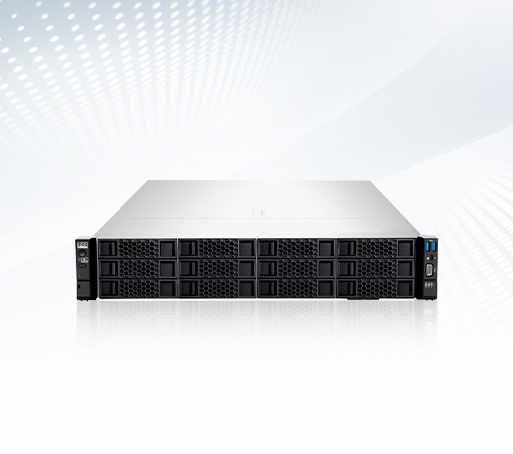
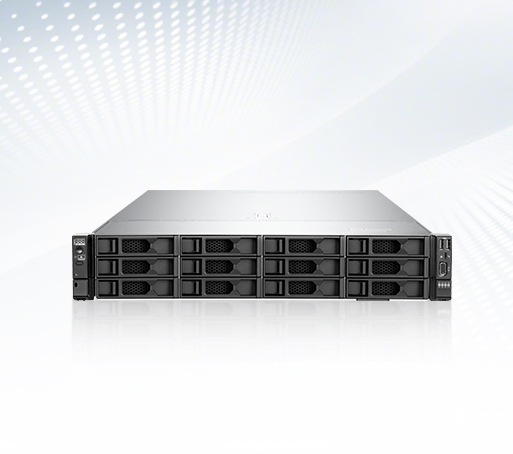
2. The serial number of the DataCVG RedCore rack-mounted server is located on the top of the mainframe -
Q
What is the difference between a workstation and a GPU server
AA workstation is typically a single-user standalone device designed for professional users, emphasizing local high-performance graphics processing, data processing, and interactive operations, such as 3D modeling, animation production, video editing, and other scenarios. Users can highly customize the hardware to meet their specific professional needs, enjoying a good local interactive experience. On the other hand, GPU servers are designed for large-scale computing tasks, supporting simultaneous access by multiple users. They are primarily used for workloads that require extensive parallel computing, such as big data analysis, machine learning training, scientific computing simulations, etc. They possess powerful computing capabilities, high scalability, and stability, meeting the needs of enterprises or scientific research institutions for centralized management and sharing of computing resources.
-
Q
How to choose a workstation or GPU server based on business requirements
AIf the business involves individual professional creation, such as 3D design for designers or special effects production for film and television practitioners, emphasizing single-user local operation and instant feedback, with high requirements for graphics performance, and also hoping for personalized hardware adjustments to the equipment, a workstation is a better choice. If the business involves enterprise-level deep learning model training, large-scale data processing and analysis, requiring multi-user shared computing resources, and high requirements for scalability, stability, and centralized management of computing resources, a GPU server is more suitable.
-
Q
Risk of water cooling liquid leakage and maintenance measures
AShuju Red Core uses enterprise grade liquid cooling components, with all copper cooling heads that do not produce chemical reactions or clog. The micro waterway design accelerates liquid flow through enhanced heat dissipation function. The medical grade water pump is sealed with 100% helium detection at the factory and has a design life of over 44000 hours.
-
Q
What are the factors that affect equipment performance
AThe performance of a workstation is influenced by GPU performance (number of cores, memory size and bandwidth, frequency, etc.), CPU performance (number of cores, clock speed, cache, etc.), memory performance (capacity, frequency, timing), storage speed (SSD read and write speed), and cooling conditions. For example, when running large 3D scenes, insufficient GPU memory can lead to stuttering, and low CPU performance can affect the model loading speed. The performance of a GPU server is influenced by the number and type of GPUs (different models of NVIDIA GPUs have significant differences in computing power), network bandwidth (data transmission between multi-node servers requires high-speed networks), memory capacity and bandwidth (to meet large-scale data storage and reading), and server architecture design (such as PCIe bus bandwidth affecting communication between GPUs and other components). In distributed deep learning training, high network latency can severely restrict training speed.